
Import
Inspect before touching anything
Preflight a Meshy ZIP and confirm the model and texture files that will enter the project.
Unity 6 Editor tool · v1.0.0
Prepare downloaded models, build clean materials and textures, bake transforms, create controlled LODs and keep every original asset intact.
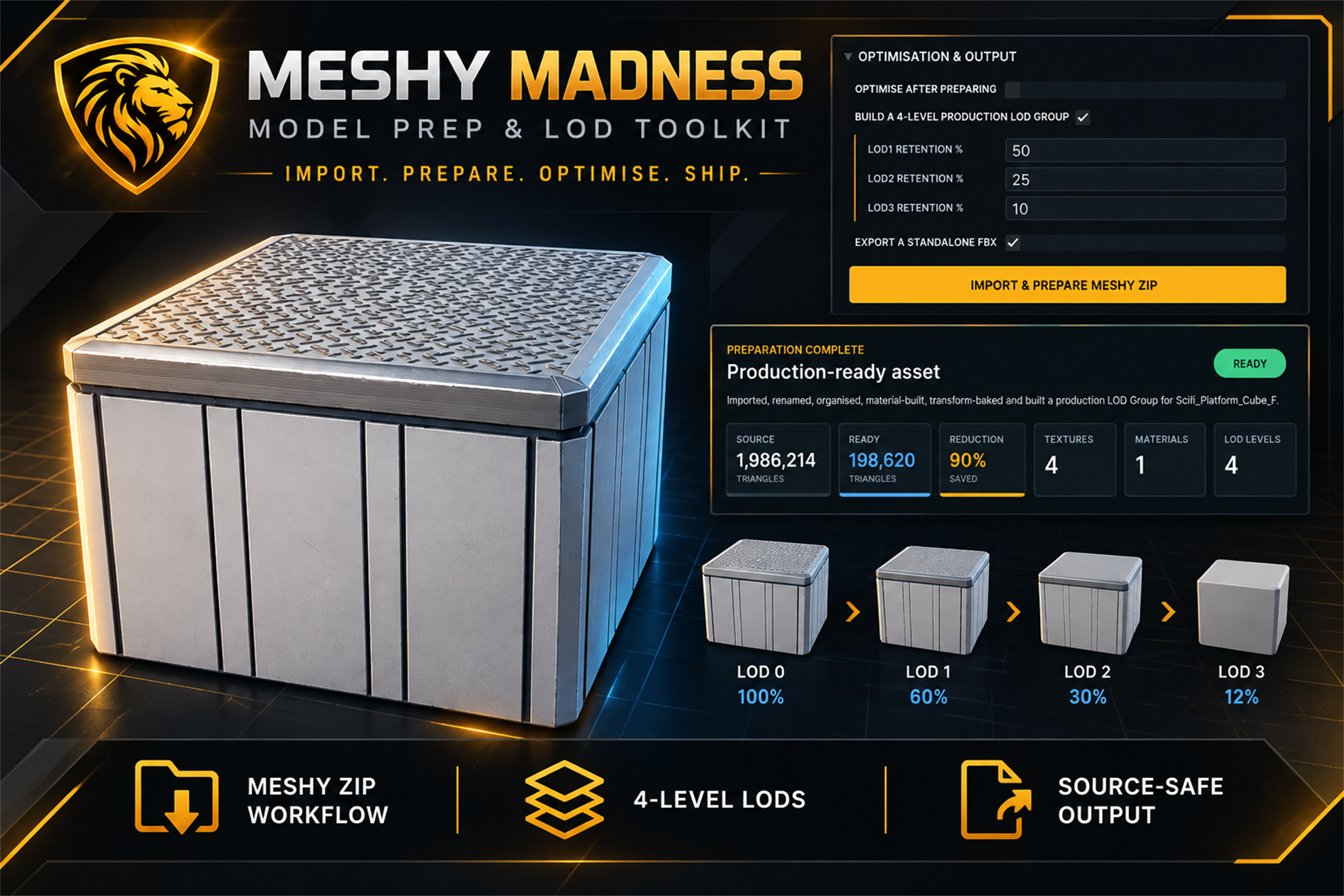
One focused production workflow
Model preparation is rarely one job. Meshy Madness brings naming, transforms, pivots, materials, textures, colliders, optimisation and LOD creation into one guided Unity editor workflow.
Import
Preflight a Meshy ZIP and confirm the model and texture files that will enter the project.
Prepare
Clean names, bake transforms, choose the pivot and collider, then build materials and textures.
Ship
Create the prefab, optional optimisation and four-level LOD group beside a clear production report.
The real Unity editor workflow
These screens show the actual v1.0.0 tool and the output it creates.
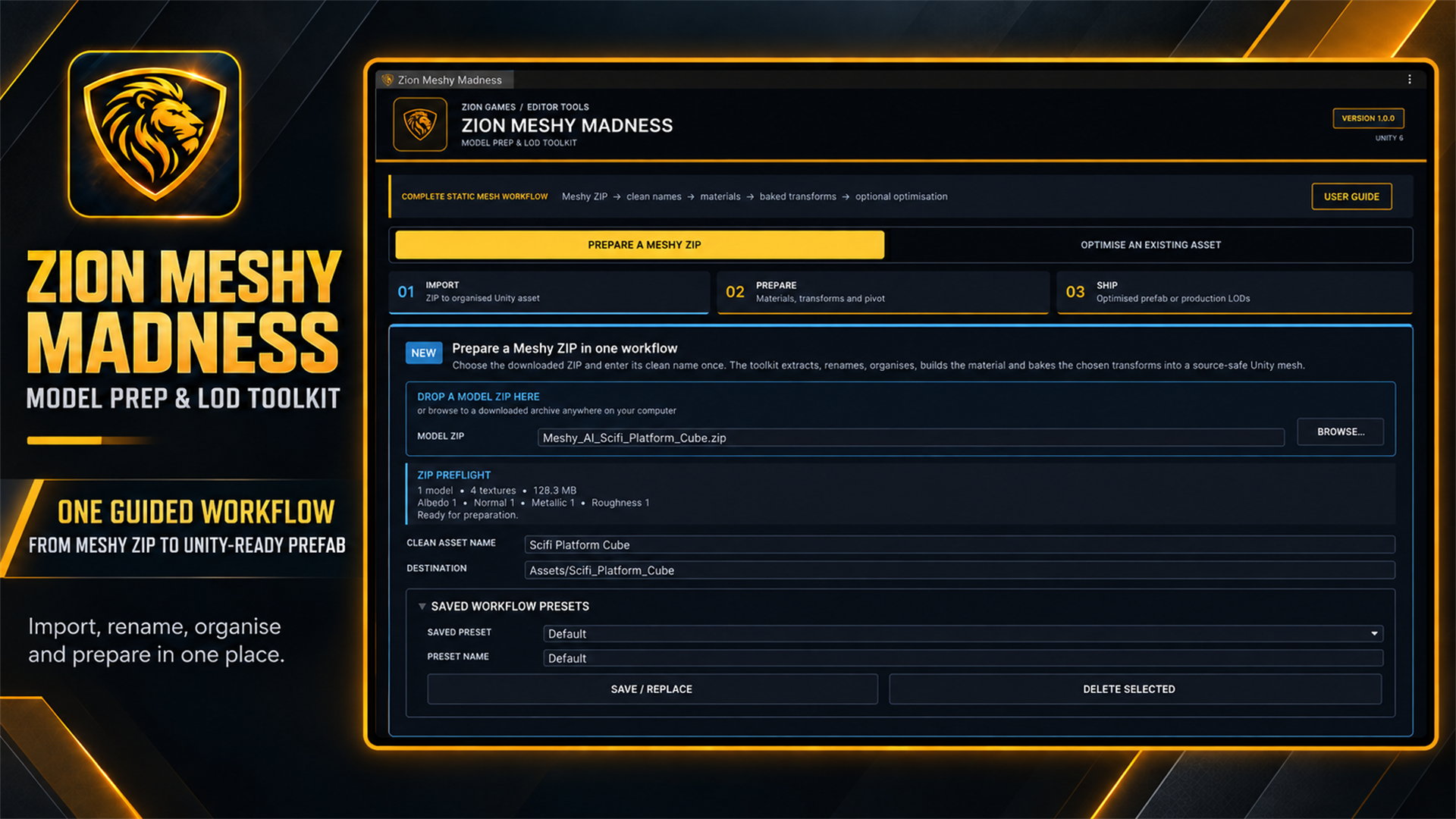
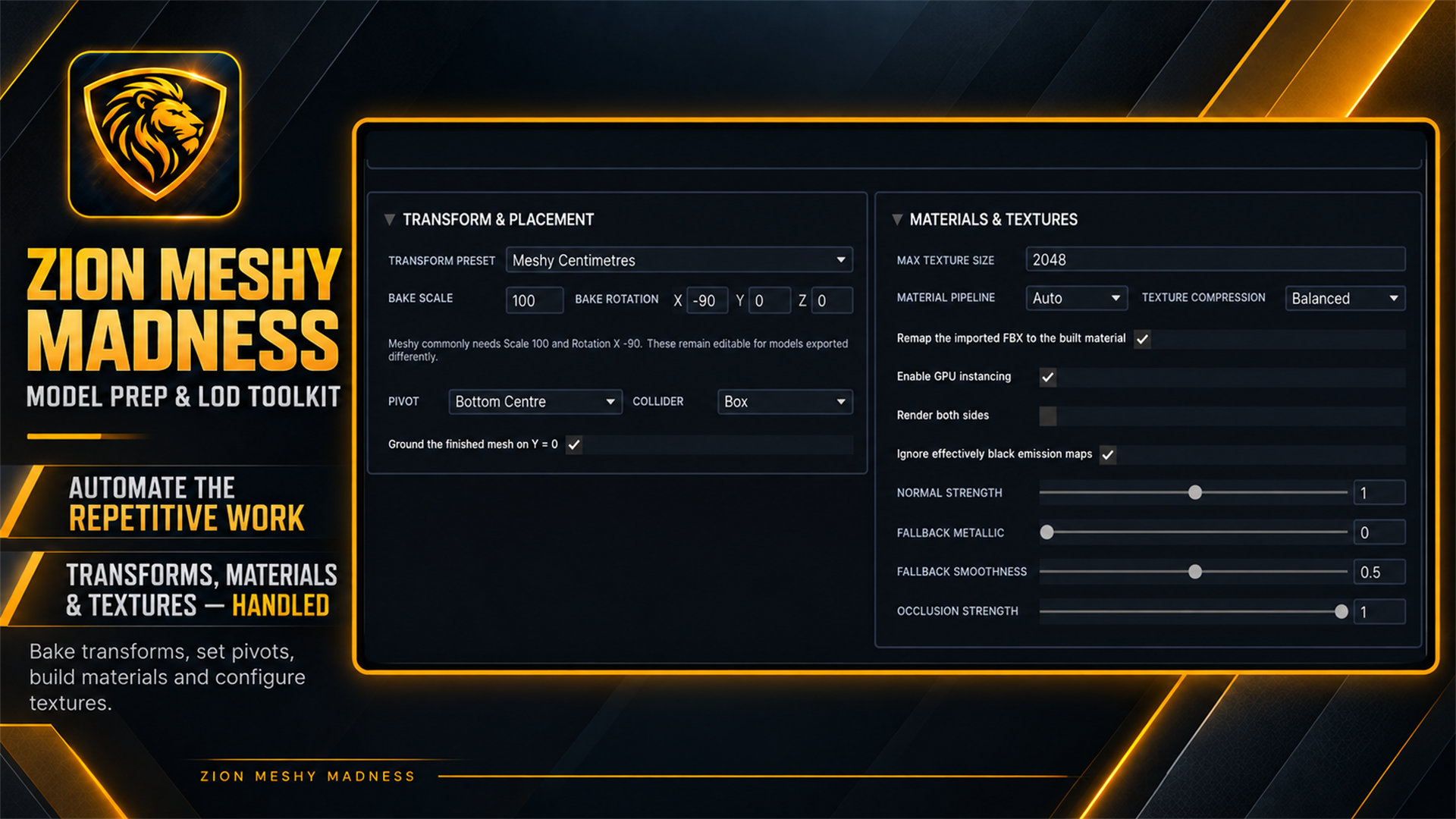
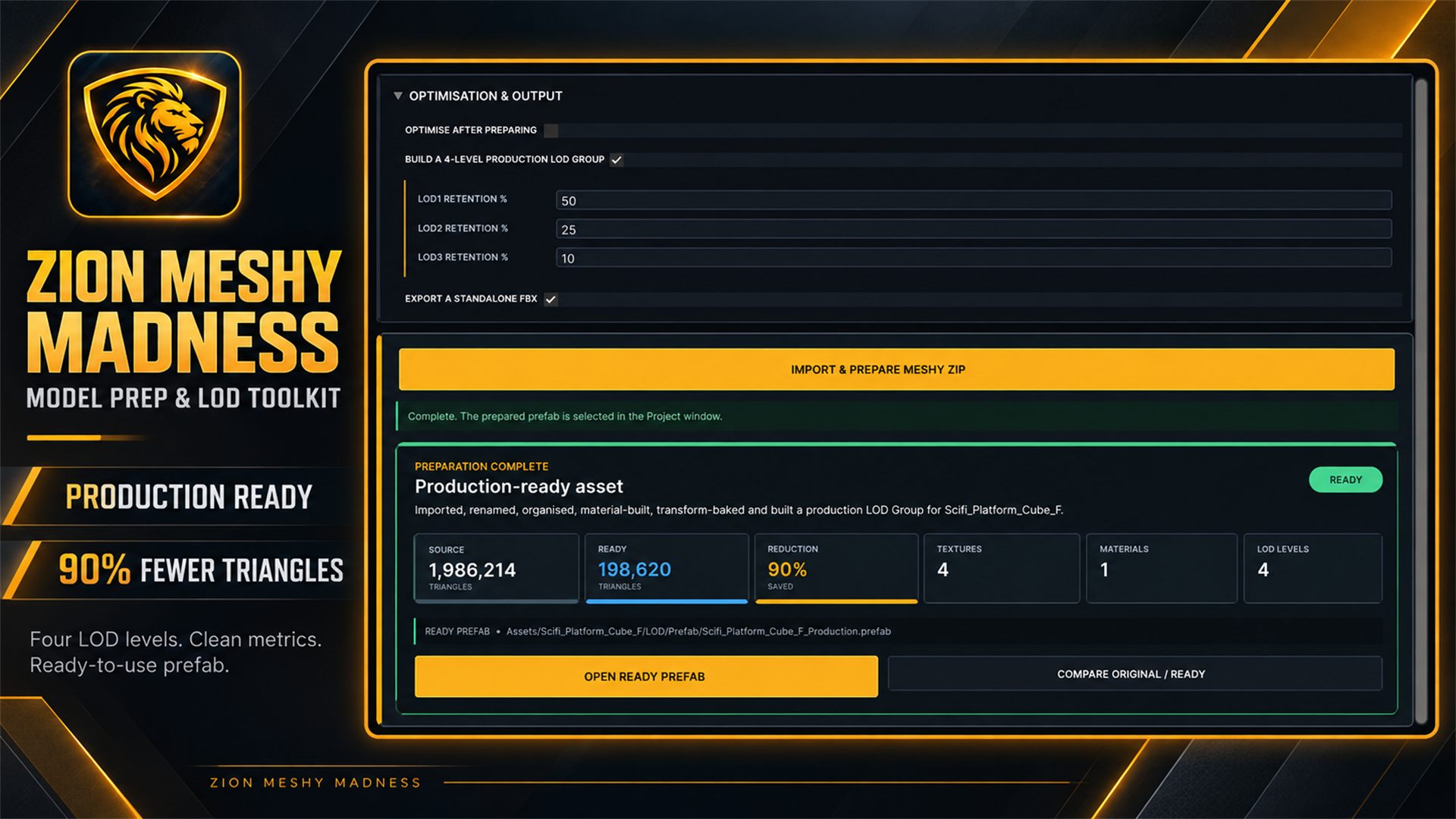
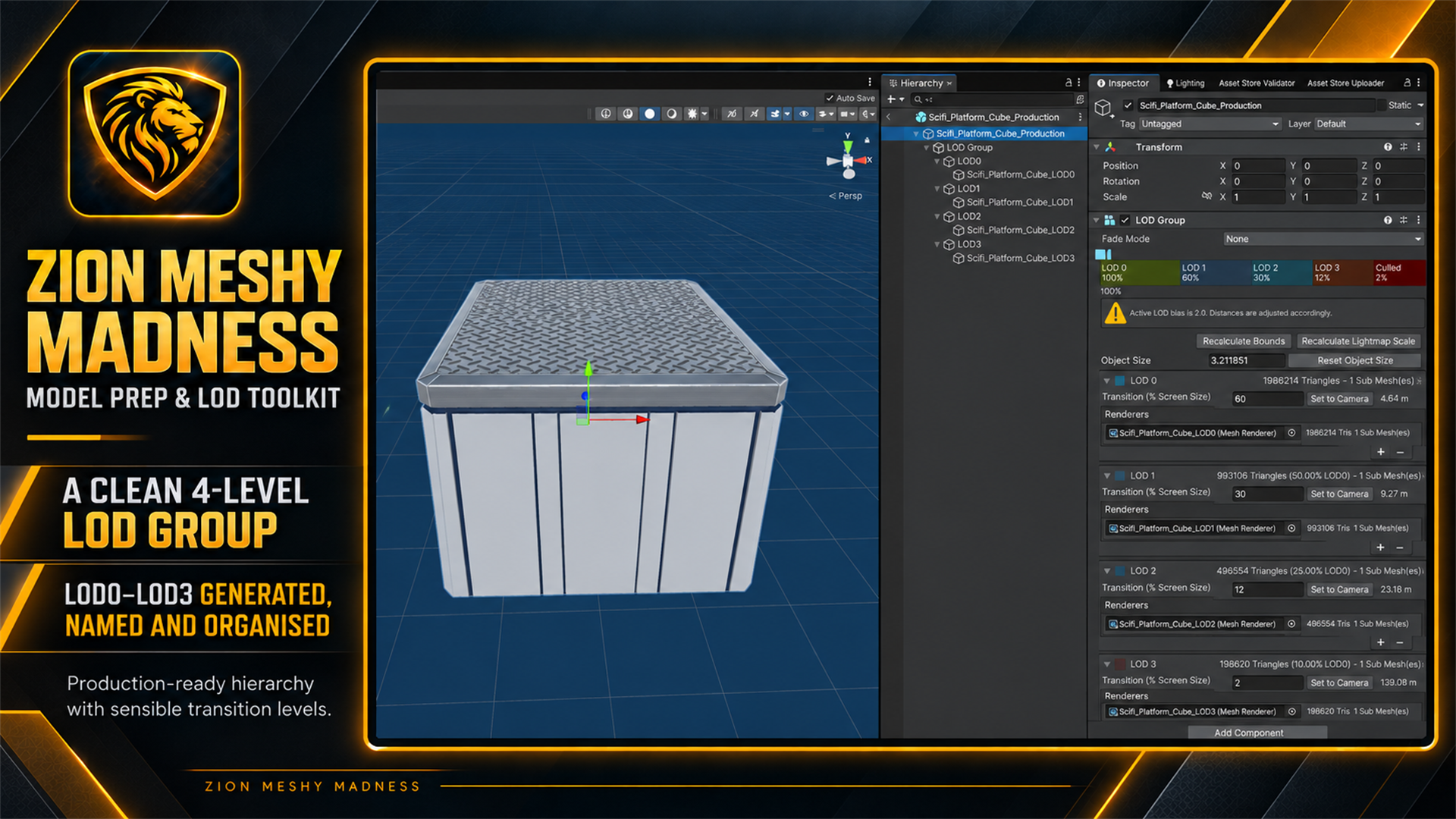
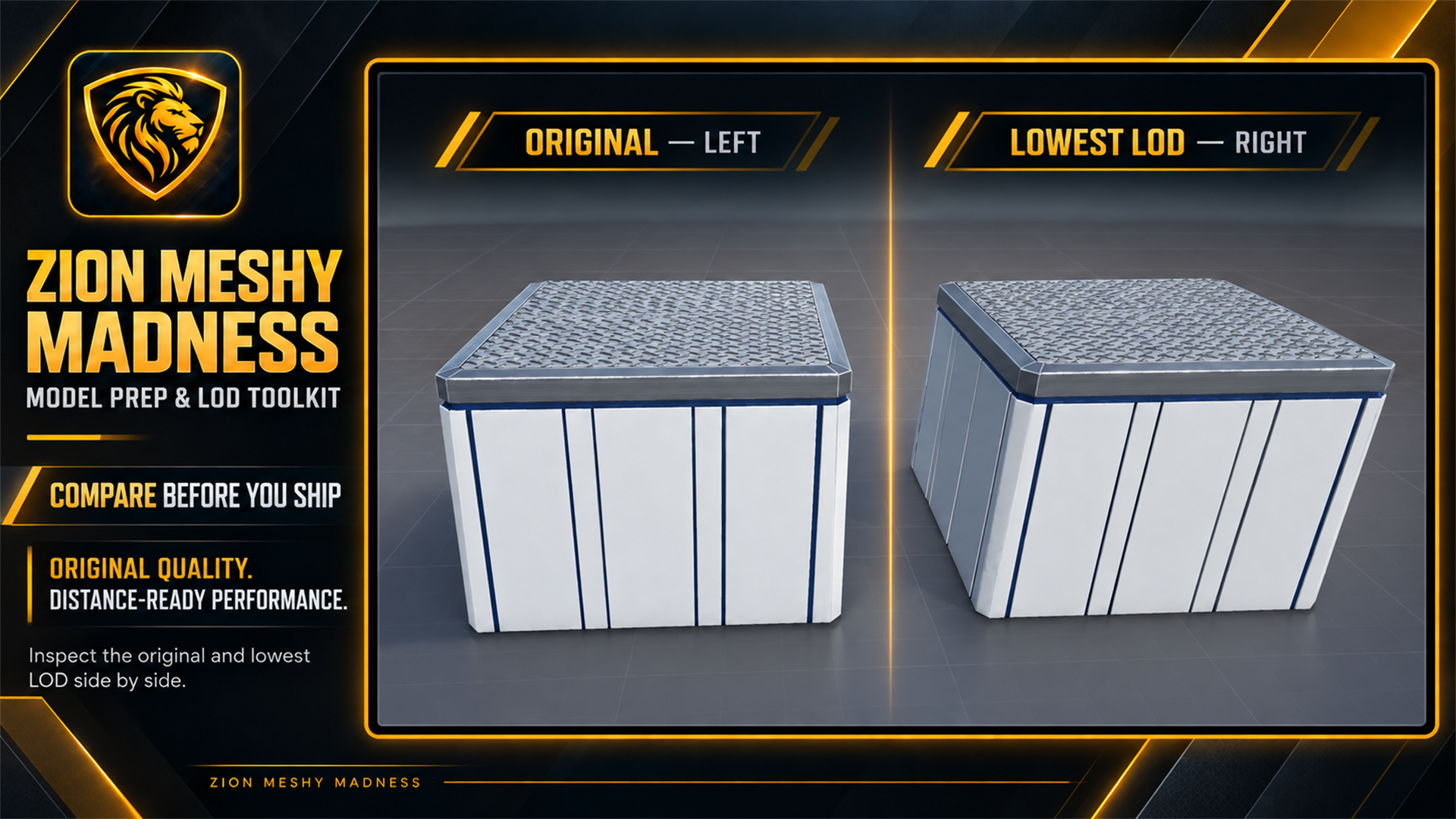
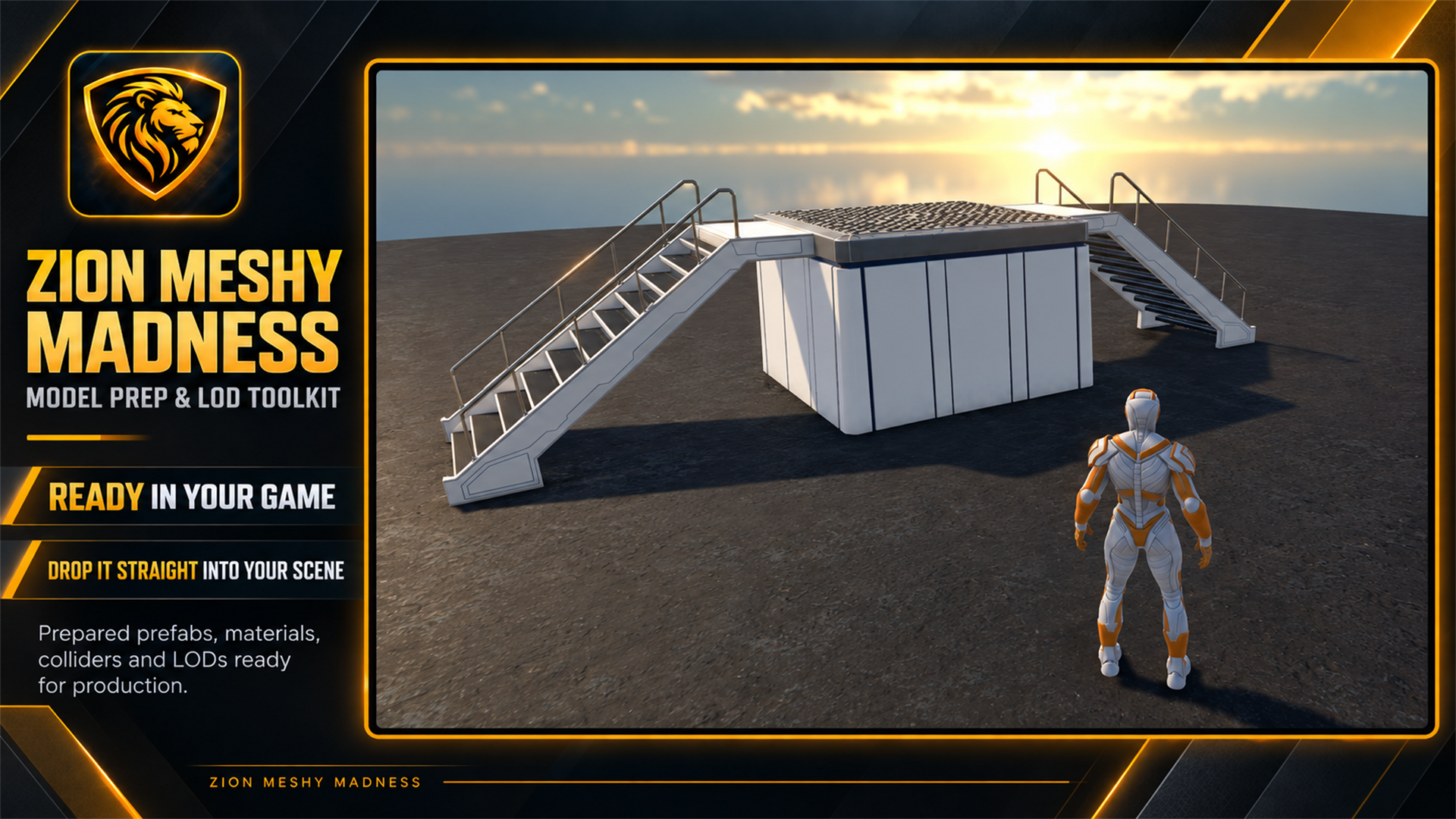
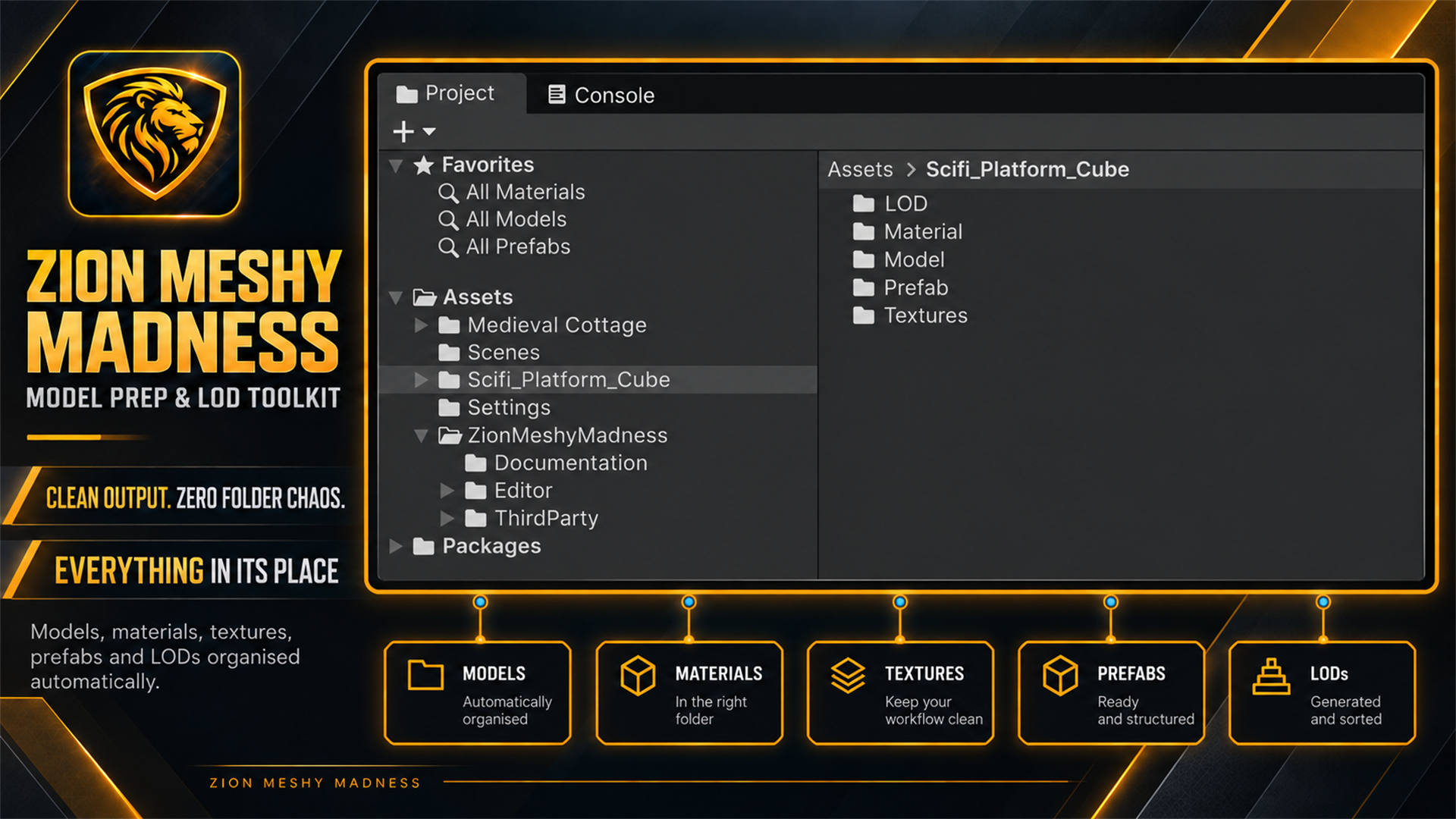
Use the arrow keys, controls or thumbnails to explore all eight screens.
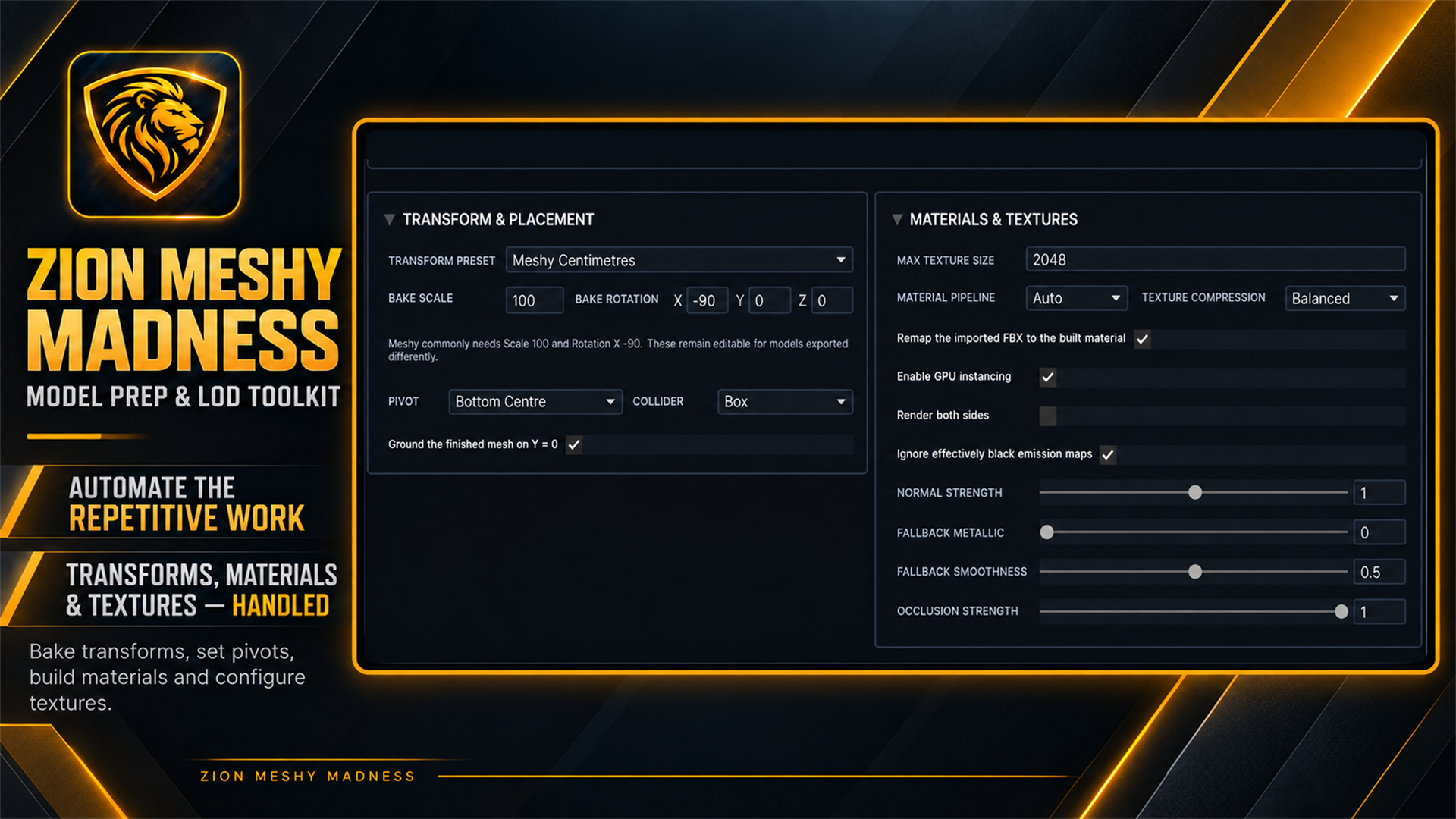 Transforms · materials · textures
Prepare with intent
Start from a sensible Meshy centimetres preset, then choose exactly how the model should be named, oriented, grounded, surfaced and used in the scene.
Production controls without the busywork
The guided path keeps the essentials visible while presets let you reuse a dependable configuration across similar assets.
See the model and texture files before the import begins.
Bake corrective transforms and choose where the finished prefab should sit.
Build a clean Unity material and reconnect the relevant texture channels.
Set compression and channel handling without hunting through several inspectors.
Choose collider behaviour, GPU instancing and double-sided rendering when the asset needs them.
Store a preparation setup and apply it consistently to the next suitable model.
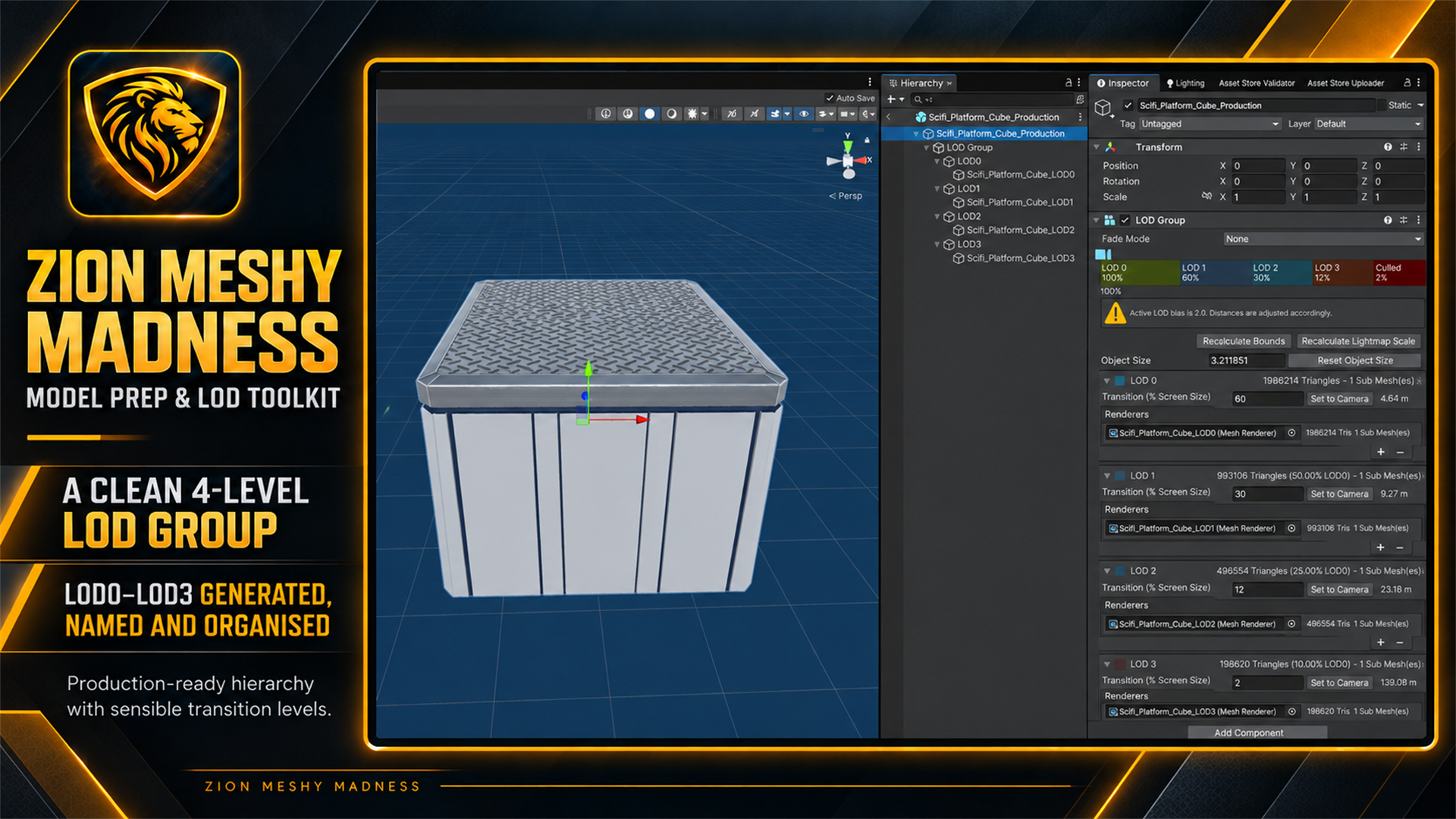 LOD0 · LOD1 · LOD2 · LOD3
Controlled level-of-detail generation
Generate a clean four-level LOD Group with user-controlled mesh retention and screen transitions, then compare the original silhouette with the lowest level.
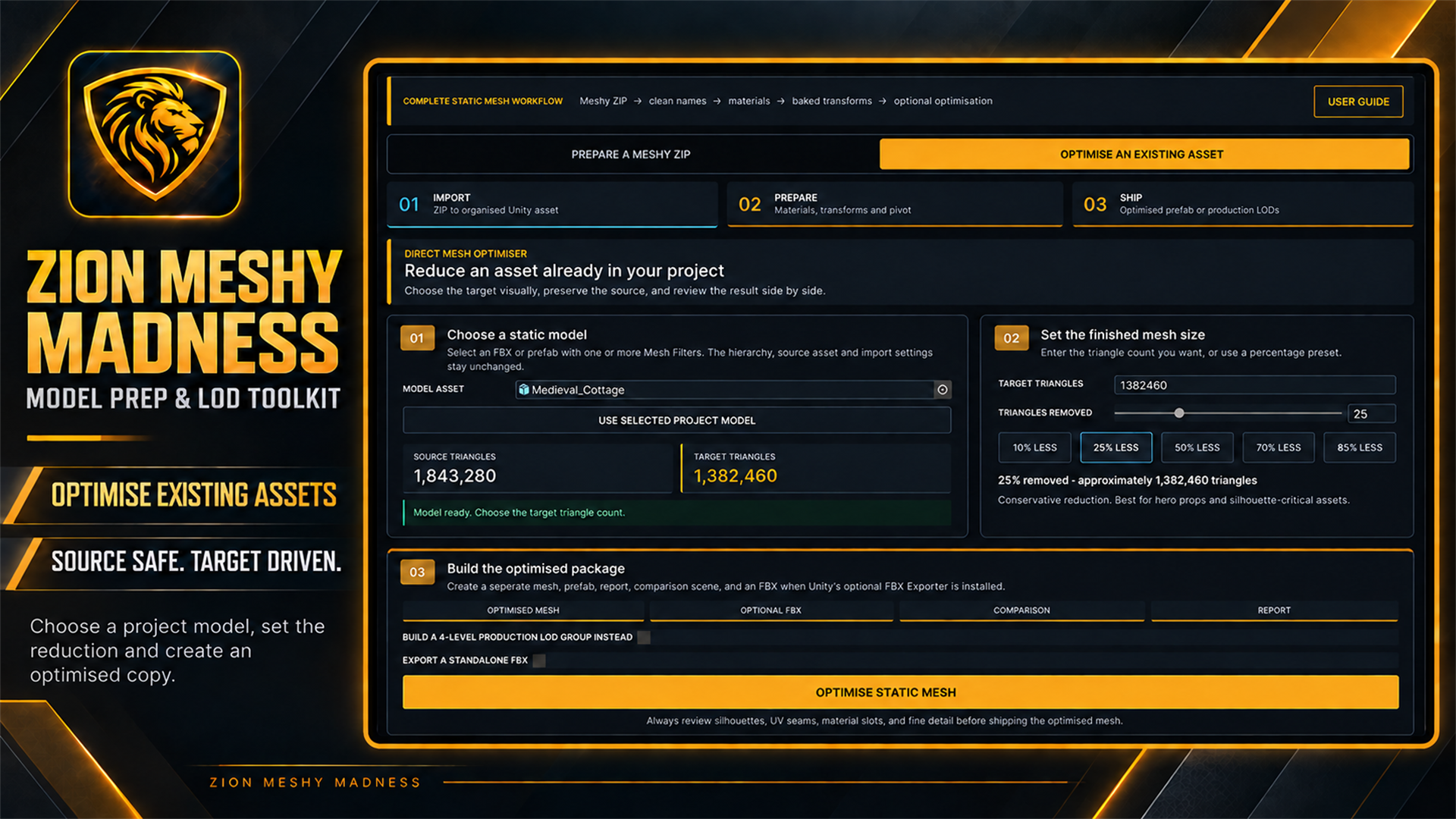 Existing FBX or prefab · separate output
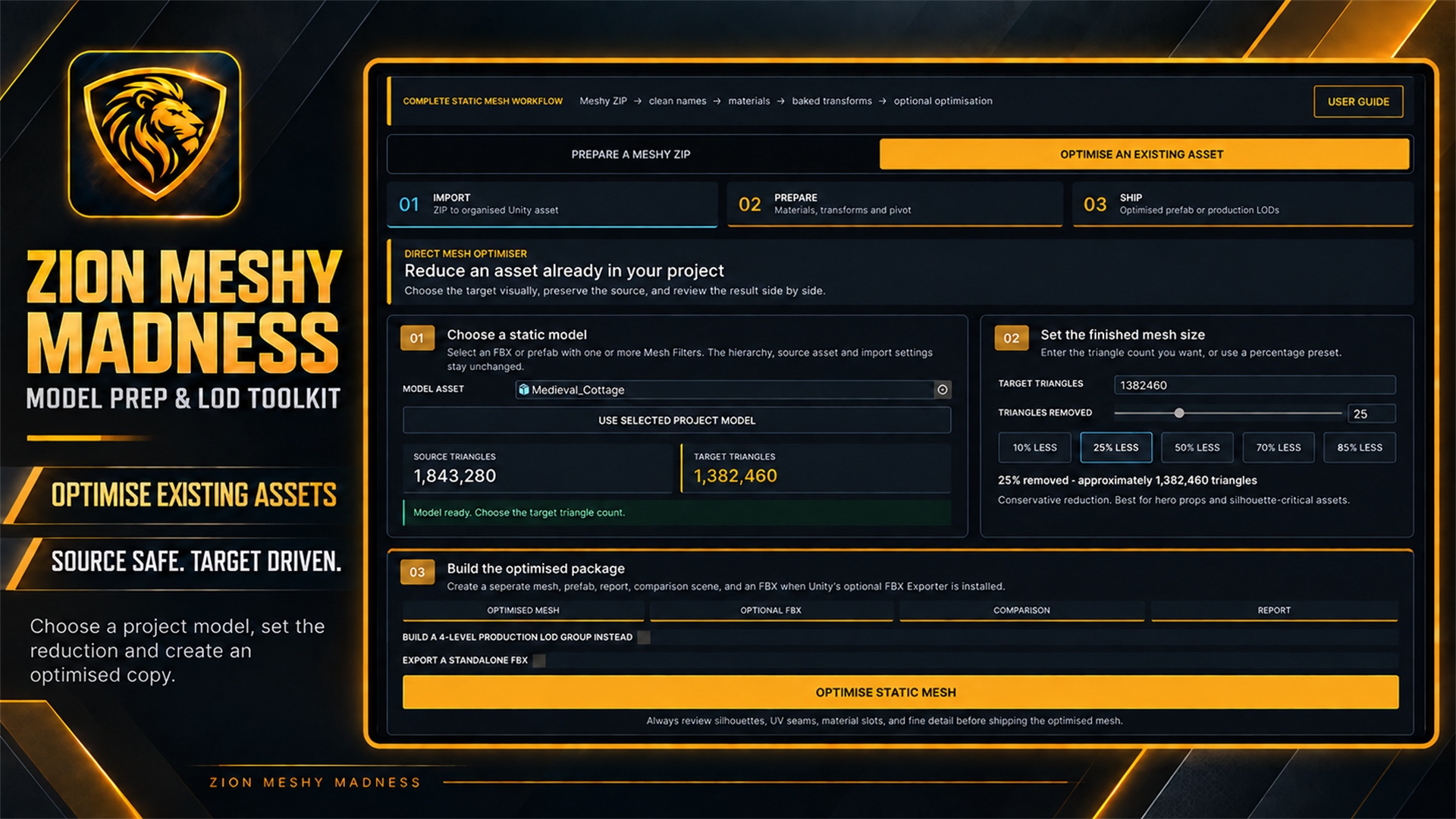
Not limited to a fresh Meshy ZIP
Select an existing FBX or prefab that uses MeshFilters, enter a target triangle count or choose a reduction preset, and create a separate production candidate.
A clean hand-off to the rest of the project
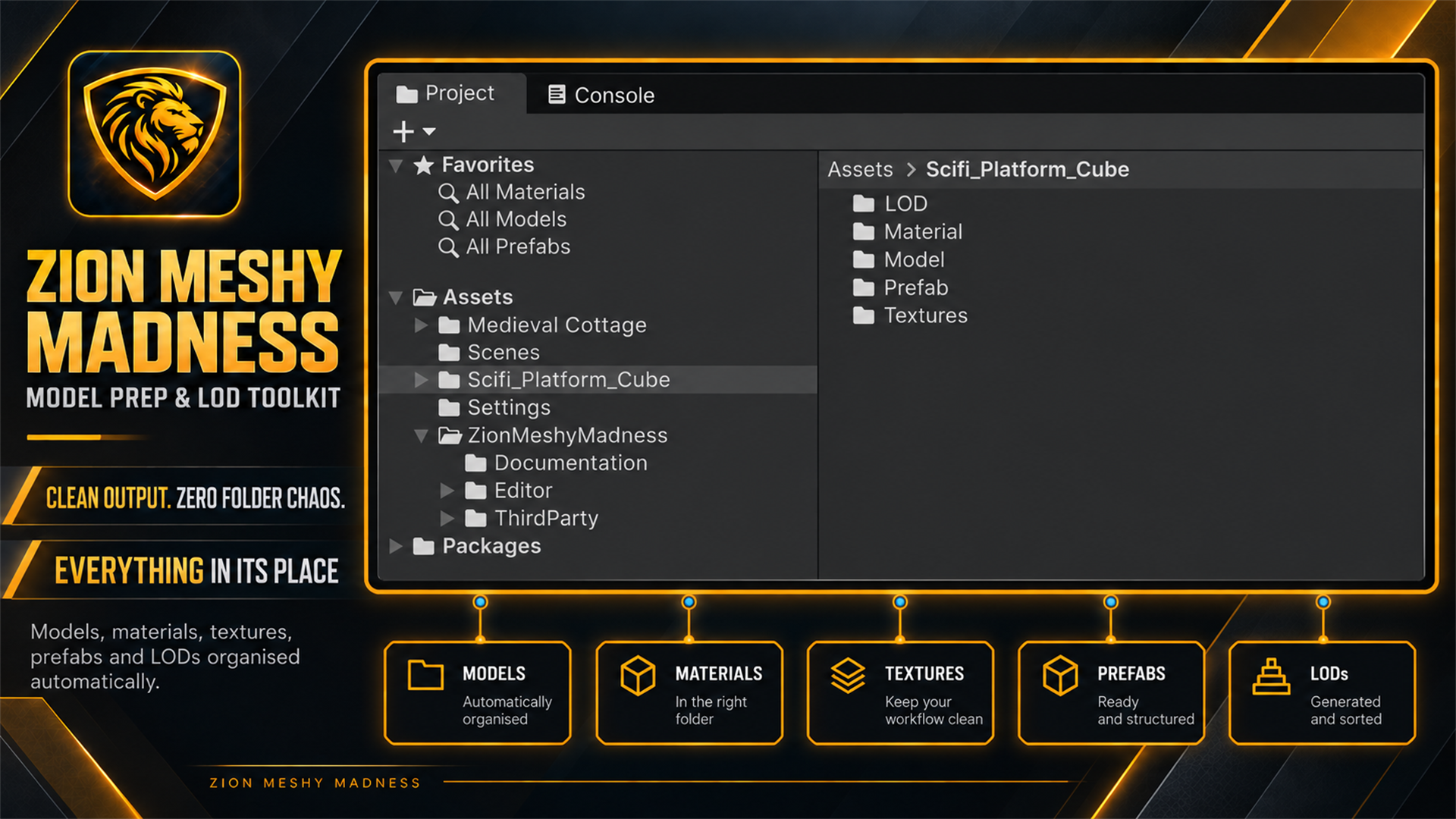
Generated content is separated by purpose, with the finished prefab ready for a scene and the original model still available for another pass.
Before you begin
Straight answers
No. The guided ZIP path is built for Meshy exports, while the separate optimiser can process a suitable existing FBX or prefab that uses static MeshFilters.
No. Prepared and optimised results are generated as separate project assets so the selected source remains intact.
No. The reduction shown in the product imagery is one example. You choose the target, and the finished result should always be reviewed for silhouette and surface quality.
Only for optional standalone FBX output. Mesh, prefab, report and comparison-scene output do not depend on that optional export step.
Zion Meshy Madness · v1.0.0
Import. Prepare. Optimise. Ship—with clean output and the original model still safe.
Get Meshy Madness
Open the complete documentation