
Preparing game-ready 3D models for Unity
A practical Unity workflow for importing static props, checking scale and materials, building prefabs and validating LODs in the target scene.
Check the source model and its import
Start with one representative prop. Compare it with an object of known size, check orientation and pivot, and inspect texture assignments in the target render pipeline. Use a modelling tool when topology or UVs need repair. Keep a source copy so changes to the prepared asset can be repeated.
Prepare the static prop as a prefab
Use Unity’s import settings and prefab tools for one-off assets. For a repeatable workflow in Unity 6, Zion Meshy Madness can prepare supported ZIP exports and optimise static FBXs or prefabs already in the project. Review scale, orientation, material slots, pivot and collider choices before committing to a batch. Use a rigging workflow for animated characters and skinned meshes.
Work through one static prop before preparing a batch
Take a crate or similar prop and place it beside a one-metre Unity cube. Look for a consistent scale across instances, a base that sits on the floor and a pivot that makes placement predictable. If the material looks wrong, confirm the target render pipeline and compare the base colour and normal maps in scene lighting. For an imported normal texture, verify its import type before judging the mesh.
Make a prefab and test it with the same camera, lighting and collision setup as the rest of the level. Keep the original asset nearby for comparison. For a Meshy Madness pass, use the static model workflow on this one prop first, review the output and then reuse the settings only on props with comparable scale and detail.
Verify optimisation at gameplay distances
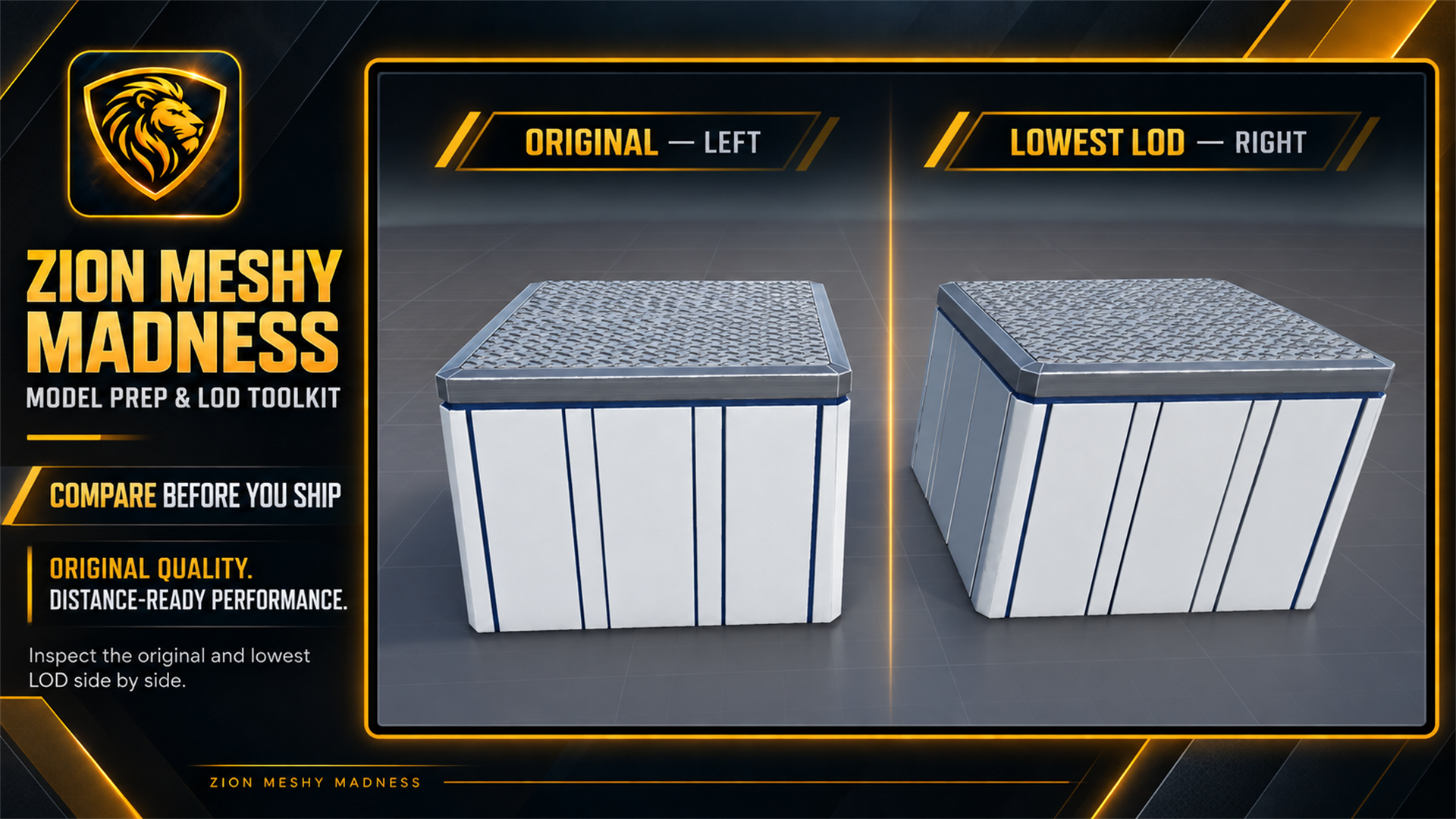
Compare the original and prepared prefab under the same lighting. Move the game camera through the LOD transitions and look for silhouette changes, missing surfaces or material swaps. Check placement and collision in the intended scene, then profile a representative group of props before deciding whether to reduce mesh or texture detail further.
Zion Meshy Madness · Documentation and setup · All Unity guides