
Managing character animations in Unity
Organise animation packs, preview Humanoid clips on your character and connect a curated animation library to your Unity Animator Controller.
Organise clips around what the character does
Start with a short list of roles such as idle, walk, run, jump and land. Keep imported packs intact and give selected clips readable names in a separate character library. Record whether each clip loops and whether movement is in-place or driven by root motion. That makes it easier to replace a clip later without searching every pack again.
Choose the right tool for each stage
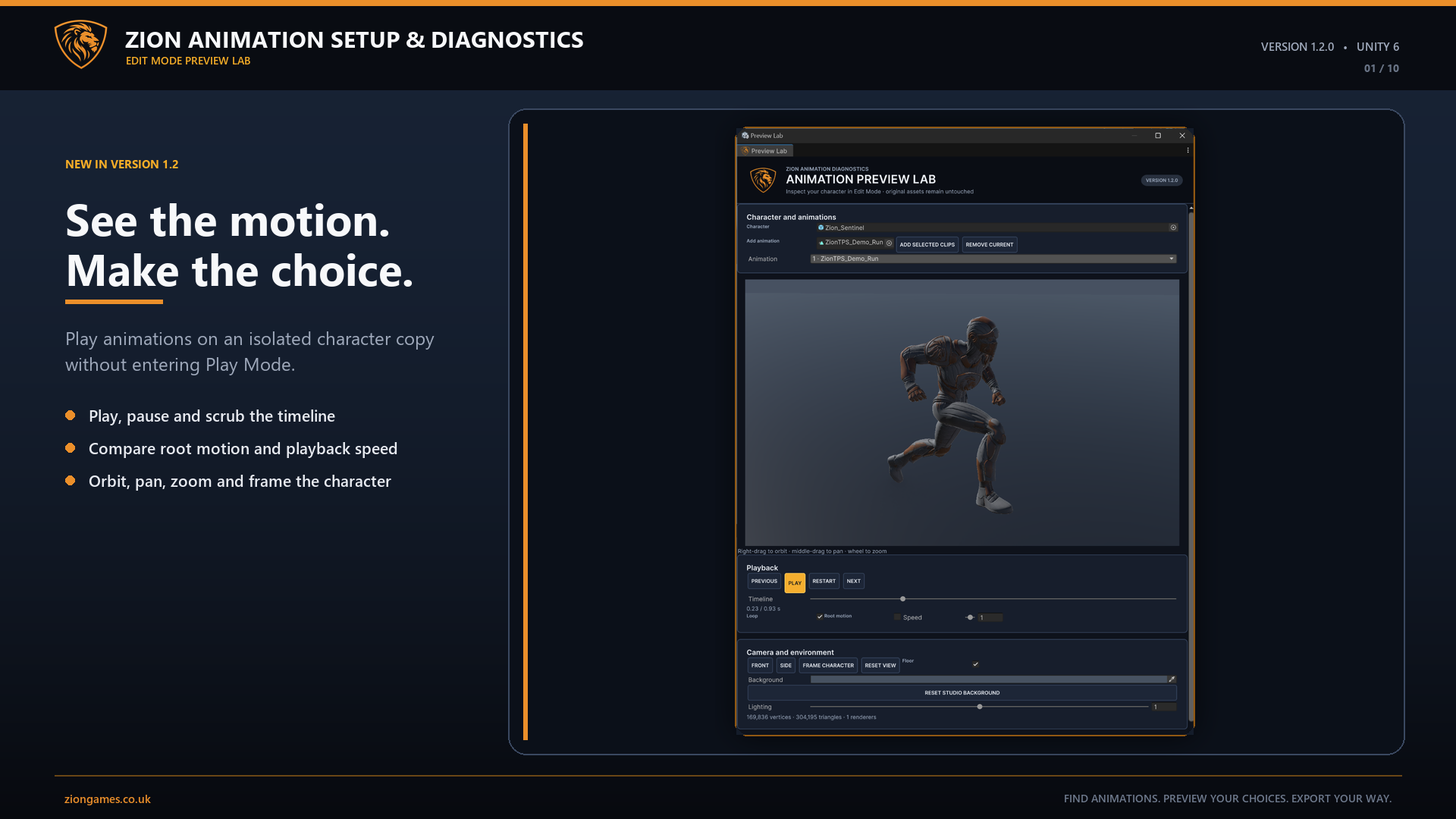
Use Unity’s Animation window to edit clips and Animator Controllers to define states, blend trees and transitions. When you need to compare clips from several packs on the same Humanoid character, use Zion Animation Setup & Diagnostics to search across folders, audition candidates in Edit Mode and export selected clips to a curated library.
Work through a locomotion set
Pick a single Humanoid avatar and assemble idle, walk and run clips from two packs. In Unity, confirm the source models use the Humanoid rig import setting and that the target Avatar is valid. Preview each clip at its intended speed, then compare the same walk clip on the source and target characters. If the target twists while the source looks right, check bone mapping and the target Avatar pose before replacing the clip.
Keep a note for each approved clip with its role, source path, loop setting and root motion choice. For a character moved by a script, test in-place clips against the controller's movement speed. For a root-motion setup, inspect root movement in the preview and then check the actual distance travelled in the game. Export only the approved clips when you already have a production controller.
Verify the library in Play Mode
Preview several loops and check foot contact, hip drift and how the first and last poses join. If a clip works on one character but twists on another, inspect the target Avatar mapping and pose. Test the chosen clips in the production Animator Controller at real gameplay speeds, including walk-to-run and jump-to-land transitions.
Zion Animation Setup & Diagnostics · Documentation and setup · All Unity guides